Run OpenCode on Ubuntu & WSL — A Terminal-First AI Workflow
A practical guide to installing and using OpenCode on Ubuntu Server and WSL. Learn how to run AI directly inside your working directory to refactor code, summarize files, generate slides, and build tools — all from the terminal.
There are two types of AI users.
The browser-tab crowd.
And the terminal people.
If you already operate inside SSH sessions, WSL, remote VMs, or local project folders — you don’t need another dashboard.
You need AI that works inside your working directory.
This is how I run OpenCode on Ubuntu Server and WSL.
Minimal setup. Clean runtime. Real workflow.
The Layer99 Approach
- Keep the OS clean
- Control your runtime versions
- Work inside real directories
- Let AI operate where your files already live
No uploading files into web dashboards.
No copy-paste gymnastics.
No context switching.
Just:
cd project
opencode
Install Node Properly (NVM + Node 20)
Ubuntu’s default Node version is usually outdated.
Fix it cleanly using NVM.
sudo apt update && sudo apt install -y curl build-essential
curl -o- https://raw.githubusercontent.com/nvm-sh/nvm/v0.39.7/install.sh | bash
source ~/.bashrc
nvm install 20
nvm use 20
Verify:
node -v
npm -v
You now have a controlled Node 20 runtime.
Works on:
- Ubuntu Server
- WSL Ubuntu
- Cloud VMs
- Proxmox VMs
Install OpenCode
npm i -g opencode-aiLaunch it:
opencodeThat’s it.
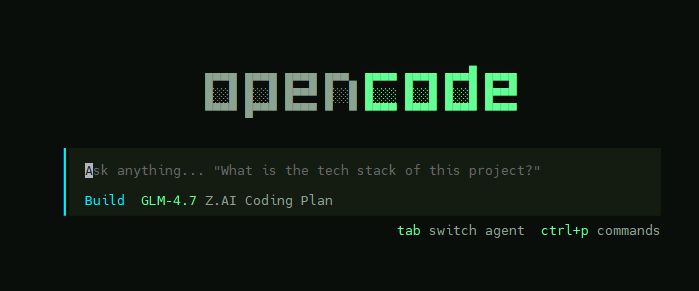
No background service.
No web UI.
It opens directly inside your terminal.
Other Notable Installation (If you want to test with other
Gemini CLI
npm install -g @google/gemini-cliRun it with:
gemini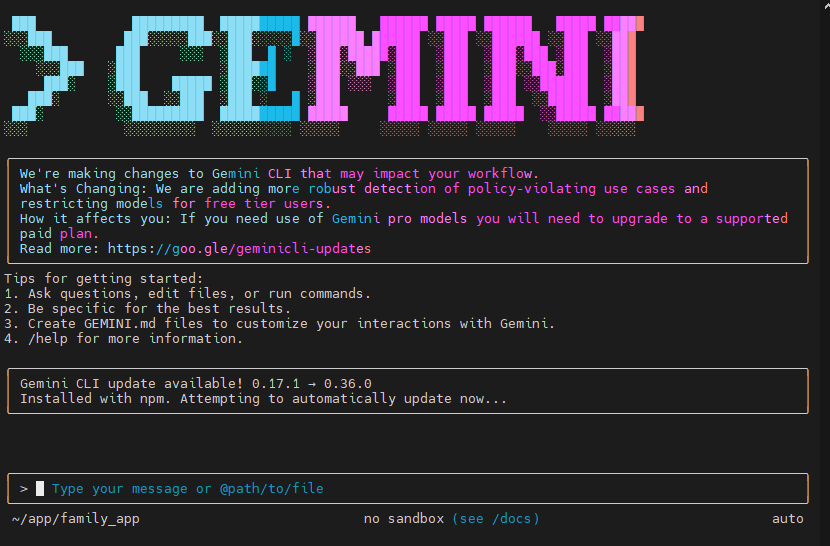
Claude Code
npm install -g @anthropic-ai/claude-codeRun it with:
claude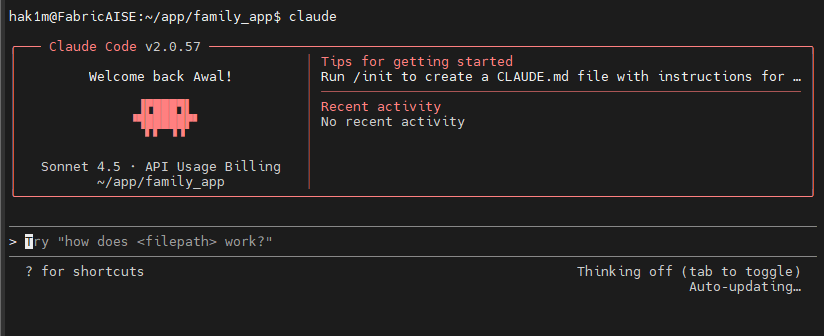
Windows → WSL → OpenCode (The Practical Workflow)
If you're on Windows, this is where it becomes powerful.
Step 1 — Open Your Project Folder in Windows Explorer
Navigate to your project folder.
Step 2 — Open Terminal Directly From That Folder
Right-click → Open in Terminal
Select your Ubuntu (WSL) profile.
You are now inside WSL, positioned in that exact directory.
Step 3 — Run OpenCode
opencodeThat’s it.
OpenCode now operates directly inside that folder.
No importing.
No uploading.
No copying content into a browser.
Direct File Access Changes Everything
OpenCode works with whatever exists in the directory:
.py.js.yaml.json.md.txt.xlsx.pptx.docx
If it’s in the folder, it’s accessible.
That means your workflow becomes:
- Open folder
- Launch WSL
- Run OpenCode
- Work directly on real files
It sounds small.
It’s not.
Practical Use Cases (Where This Actually Shines)
The use cases are endless, but the simple ones already save time.
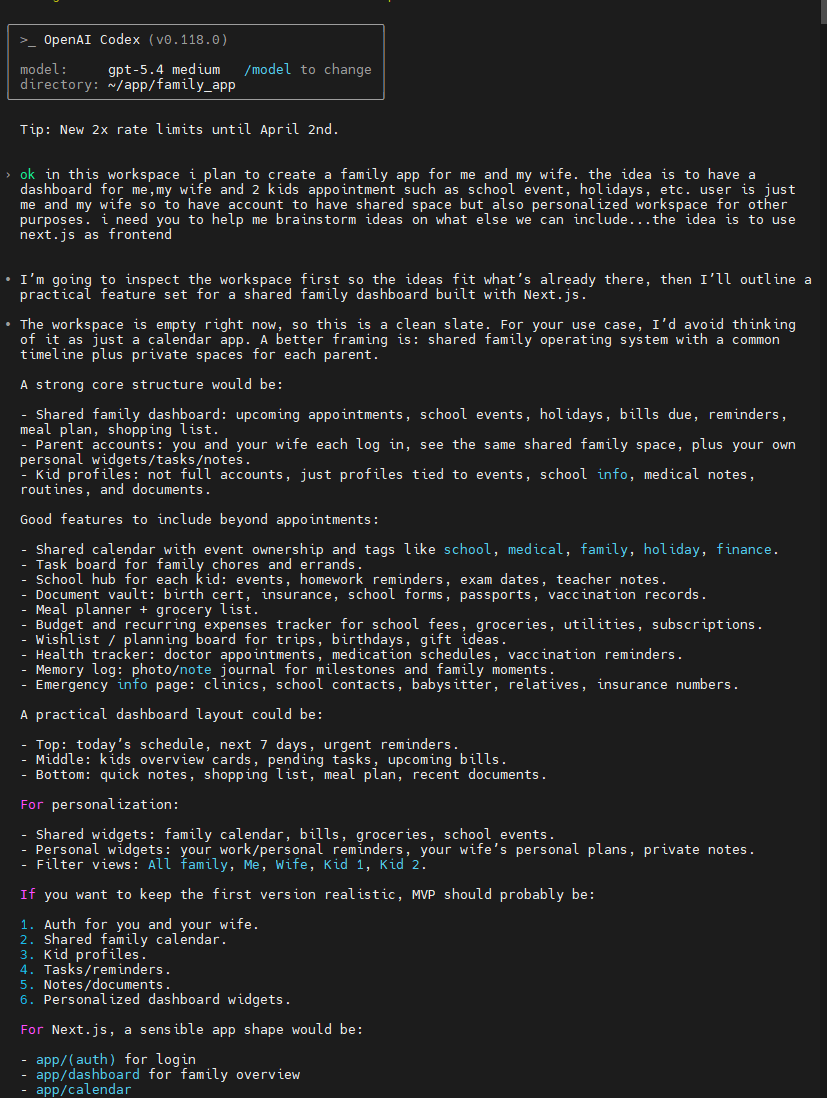
Summarize Meeting Notes
You have:
meeting-notes.txtRun:
opencodePrompt:
Read meeting-notes.txt and generate a concise executive summary into summary.txt.
It reads the file.
Creates a new file.
Done.
No browser.
No formatting clean-up.
Turn Notes Into Slides
You have:
project-update.txtPrompt:
Create a 6-slide meeting outline based on project-update.txt. Include key risks and action items.
It generates structured slide content instantly.
You paste into PowerPoint — or refine further.
Read Excel and Generate Insights
You have:
budget.xlsxPrompt:
Analyze budget.xlsx and summarize key cost drivers and anomalies into budget-summary.txt.
It extracts trends and highlights issues without manually scanning rows.
For reporting workflows, this is huge.
Create Meeting Slides From Spreadsheet Data
Prompt:
Create structured slide content based on budget.xlsx with trends, risks, and recommendations.
Now you have ready-to-present talking points.
Refactor Real Codebases
Inside a working directory:
cd ghostpanel-v4
opencode
Prompt:
Refactor this module for clarity and add structured logging.
It edits files directly.
No uploading code into chat windows.
No breaking context.
Ubuntu Server Workflow (Remote)
Same idea applies remotely.
ssh lab-node
cd /srv/internal-tools
opencode
Now AI operates directly on files on the server.
Perfect for:
- Cleaning automation scripts
- Improving internal tools
- Generating helper modules
- Restructuring service logic
Why This Matters
Terminal-native AI removes friction.
Traditional workflow:
- Open file
- Copy content
- Paste into browser
- Generate output
- Copy back
- Clean formatting
Terminal-native workflow:
cd working-folder
opencode
Everything stays inside your environment.
Over time, that compounds.
Ubuntu or WSL — Same Experience
Whether you are:
- On Ubuntu Server
- On a Proxmox VM
- On a cloud instance
- On Windows using WSL
The workflow is identical.
Consistency matters.